Automation lets a tank run itself the way you set it up — lights on/off on schedule, auto cool-down when the water gets too warm, metered top-off/water changes, alerts when a sensor goes out of range… no babysitting needed.
⚠️ Automation is managed on each tank's "detail page", not the bottom "Discover" tab (that's a web content page). So open a tank's detail page first.
Where automation is managed
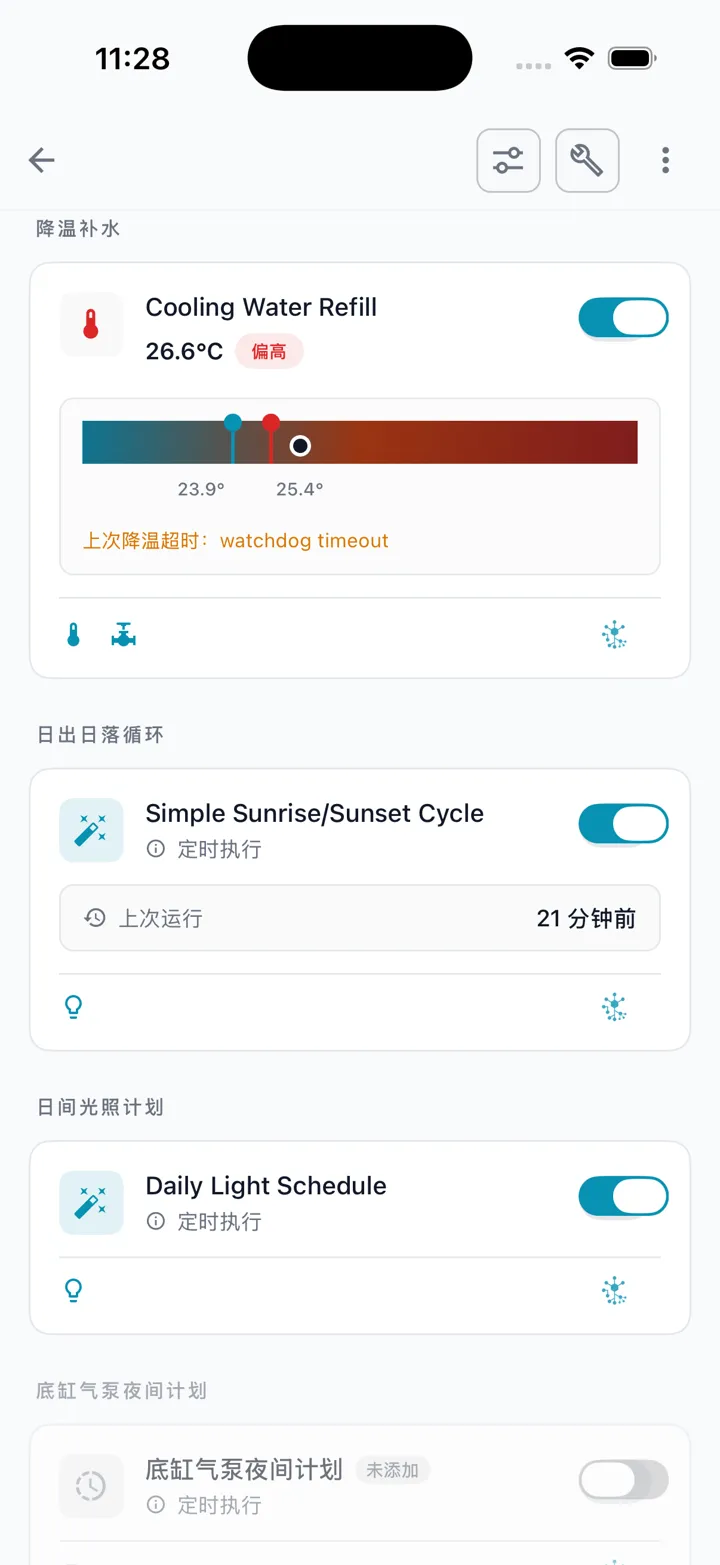
Open a tank's detail page and scroll down to the "Automation" section. You'll see two kinds:
- Recommended automations: ready-made templates the system suggests for this tank (water change, cool-down, metered top-off, lighting schedule, etc.).
- Your automations: rules you've built yourself with "when… then…".
Each automation shows its current state (running / idle / disabled) and last run time.
Quick-add from a recommended template
The easiest way — use a recommended template directly:
- In the "Automation" section find the recommended item you want; these cards are marked "Not added" at top right, with the switch on the right turned off.
- Turn on the switch on the right of the card, and the template is added and enabled.
- Want to adjust its parameters (water-change volume, cool-down target temp, top-off amount, lighting times, etc.)? Long-press the card → tap "Edit" in the menu, change what you need, and save.
💡 Remember this non-obvious bit: on a recommended card, turning on the right switch = add and enable, long-pressing the card = open the menu (edit parameters, etc.). Tapping the card face itself does not add it — don't just poke at the card.
💡 Some templates need the right devices bound first (e.g. "Metered water change" needs a top-off valve and a flow meter). If devices aren't all bound, turning on the switch tells you which are missing (e.g. "Required devices: top-off valve, flow meter") — bind those roles first (see Add a Device & Wi-Fi Setup).
Build your own "when… then…"
Want a rule beyond the templates? Build one. Entry: tank detail page → top-right menu (⋮) → Add automation.
A rule is one sentence: "when" a condition is met, "then" perform an action.
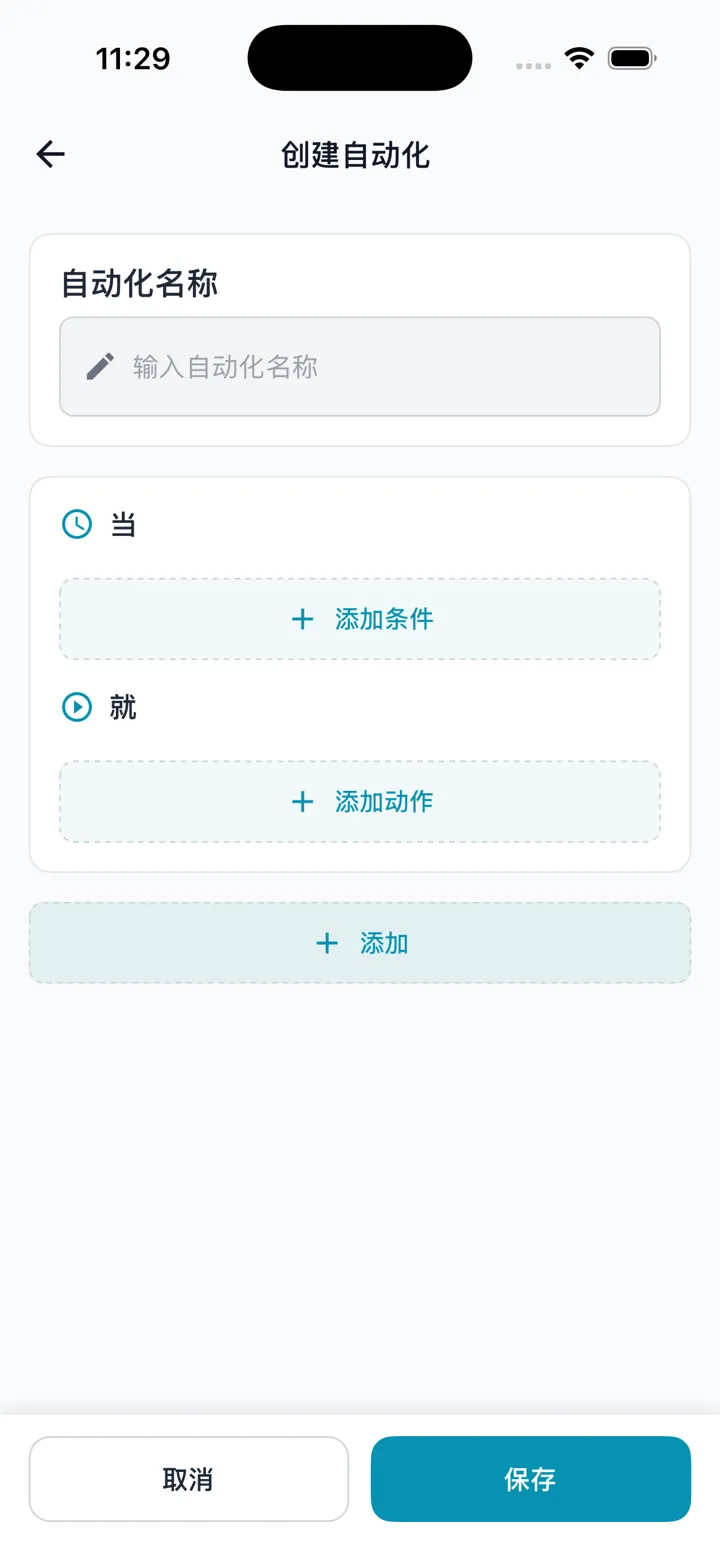
- Name the rule and choose which tank it belongs to.
- Set the "when" (trigger), choosing from:
- Schedule: daily / certain weekdays / once, at a set time;
- Time window: stays in effect during a period;
- Sensor threshold: triggers when a sensor goes above / below a set value (with an optional "hysteresis" to prevent flapping).
- Set the "then" (action), choosing from:
- Control a device: turn lights on/off, set brightness or spectrum, switch a pump or adjust power, switch the air pump, open/close a valve, metered top-off…
- Send a notification.
- Save. The rule now runs automatically as configured.
💡 A rule can have multiple conditions and multiple actions; conditions can be combined as "match all" or "match any".
Managing existing automations (toggle / edit / preview / delete)
On each automation card there are two ways to interact — be sure to tell them apart:
- Tap the switch on the card = one-tap enable / disable. Disabling one that's currently running asks you to confirm first (the current run must be canceled).
- Long-press the card = open the action menu, which is where these live:
- Edit: change its conditions, actions, or parameters;
- Share: generate a share code for someone else (see "Sharing automations" below);
- Preview run: lighting automations can be simulated once to see the effect; you can stop anytime, and the device restores itself afterward;
- Delete: removed after a second confirmation, cannot be undone;
- Cancel run: a running automation can be canceled midway.
⚠️ This is the easiest thing to miss: apart from the switch, edit / delete / share / preview are all hidden behind "long-press the card" — there are no separate buttons on the card. Can't find an action? Long-press the card.
💡 If a device an automation needs goes offline, it shows "Device offline, automation paused", and resumes automatically once the device is back online.
Sharing automations (share codes)
A tuned automation can be shared so a friend can apply it in one tap.
Sharing yours out:
- On an automation tap "Share" to get a share code + QR code.
- Tap "Copy share code" or use the system share sheet to send it.
- Done sharing? Tap "Revoke" and whoever holds the code can no longer import it.
💡 Only automations based on a system template can be shared; purely hand-built "when… then…" rules can't. Up to 50 active share codes per person.
Importing someone else's:
- Open the tank detail page you want to import into → menu (⋮) → Scan share code (or choose "Enter share code manually" and type it).
- Preview the contents, pick the target tank, and tap "Import to this tank".
- Imported automations are disabled by default — remember to enable them in the list.
💡 If this tank already has an automation from the same template, you'll be asked whether to overwrite; if the share includes a lighting preset, that's copied into your preset library too.