
Before you start: checklist
Before connecting a device for the first time, make sure these are ready — it saves most of the hassle:
- Bluetooth is on (the whole pairing flow uses Bluetooth to first "wake" the device).
- Your phone is on a 2.4GHz Wi-Fi. Devices only support 2.4GHz, not 5GHz.
- The device is powered on, with its indicator lit.
- Phone and device are close (within 1 m is most reliable).
- The device's QR code or activation code is at hand (usually printed on the box or a sticker on the device).
💡 How do you tell if your Wi-Fi is 2.4GHz? Many routers split the two bands into two names — the one with "5G" in it is 5GHz; switch to the one without "5G". If you can't tell, the app will warn you during pairing.
Quick start (10 minutes)
Just want to get going? Follow these 6 steps and you'll see your first reading in about 10 minutes.
- Sign in / register — register and sign in with your email.
- Create a tank — fill in a name, type, size, and photo.
- Add a device and pair it — open the tank detail page → menu "Add device" → scan or add manually → enter your 2.4GHz Wi-Fi. See Add a Device & Wi-Fi Setup.
- Bind it to a role — after pairing, bind the device to a role like "Main light" or "Water temperature".
- Check the first reading — back on the tank detail page, confirm sensor values are refreshing.
- Try a control — tap the main-light switch; if the device responds, the whole chain works.
Sign in & register
Opening the app for the first time
When you open the app: if you're not signed in, you land on the login page; if you've signed in before, the app keeps you logged in and goes straight to the home screen — no need to re-enter your password each time.
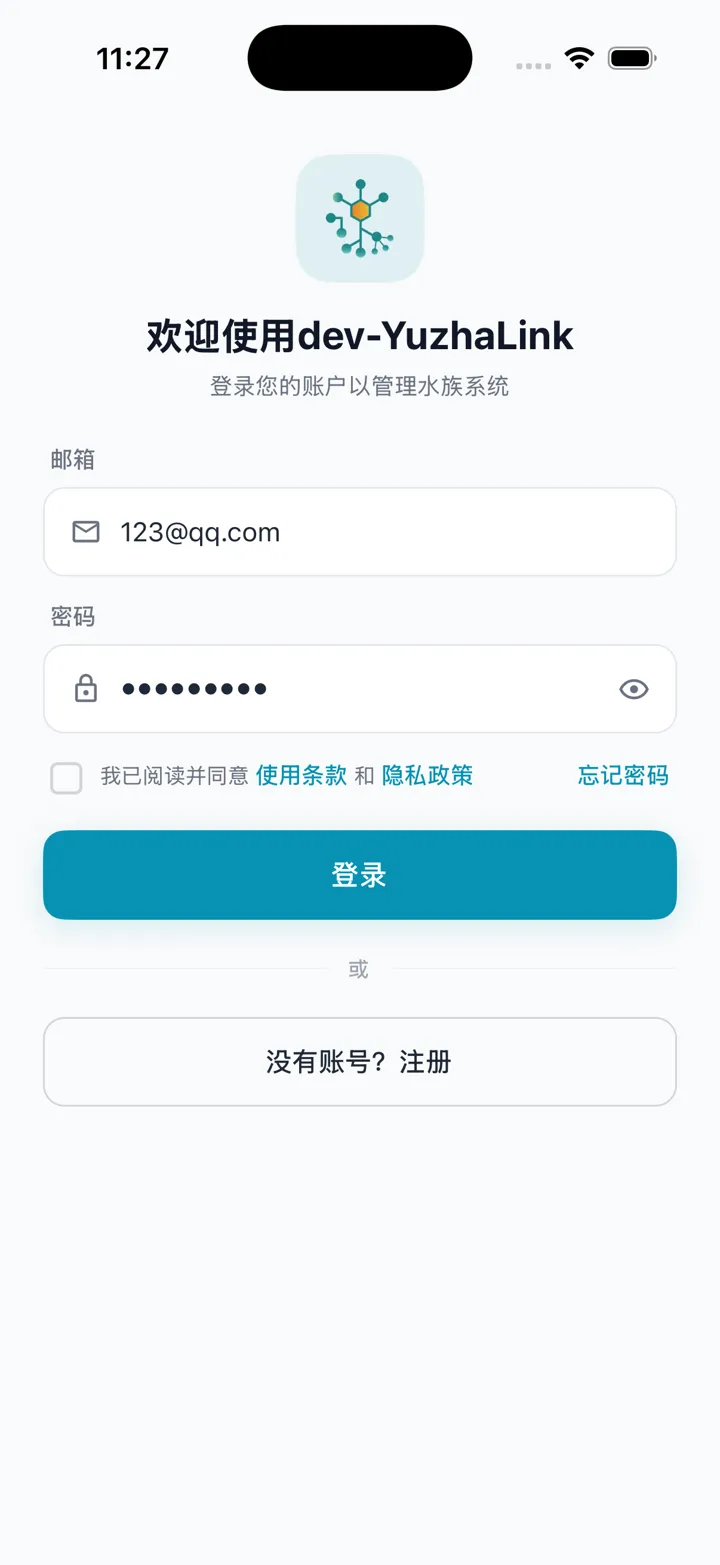
If you don't have an account yet, tap "No account? Register" at the bottom.
Registering a new account
On the login page tap "No account? Register" to open the registration page, then fill in top to bottom:
- Select country — tap to expand the list and choose your country/region.
- Email — enter an email address you can receive mail at.
- Verification code — after entering your email, tap "Send code" to the right. A 6-digit number is sent to your email; enter it. The button starts a 60-second countdown before you can resend.
- Username — your display name in the app.
- Password — set a password that meets the rules (below). Tap the eye icon to show/hide, or "View password requirements" to see the rules anytime.
- Confirm password — enter the same password again; the two must match.
- Agree to the terms — check "I have read and agree to the Terms of Service and Privacy Policy".
- Tap "Register". On success you're signed in automatically and taken to the home screen.
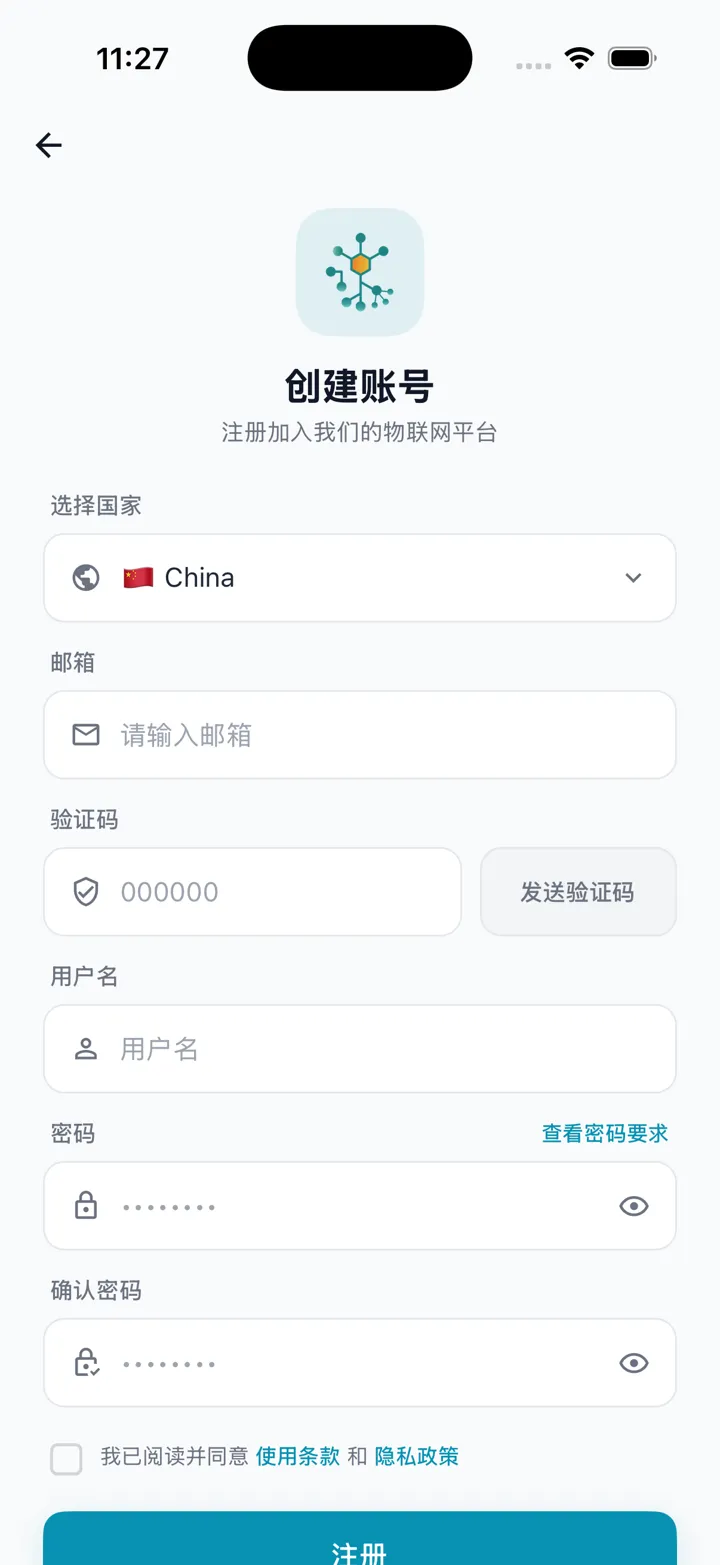
💡 Password requirements: at least 8 characters, and meeting at least two of the four classes — uppercase, lowercase, digits, special characters. e.g. MyFish2024 (upper+lower+digits) works; abcdefgh (lowercase only) doesn't.
Signing in
With an existing account, on the login page: enter your email → enter your password (tap the eye icon to reveal it for checking) → check "I have read and agree to the Terms of Service and Privacy Policy" → tap "Sign in".
⚠️ You can't sign in without checking the agreement — it's required.
Forgot your password
On the right of the login page tap "Forgot password" to open the reset page. It's a two-step flow with a progress indicator at the top.
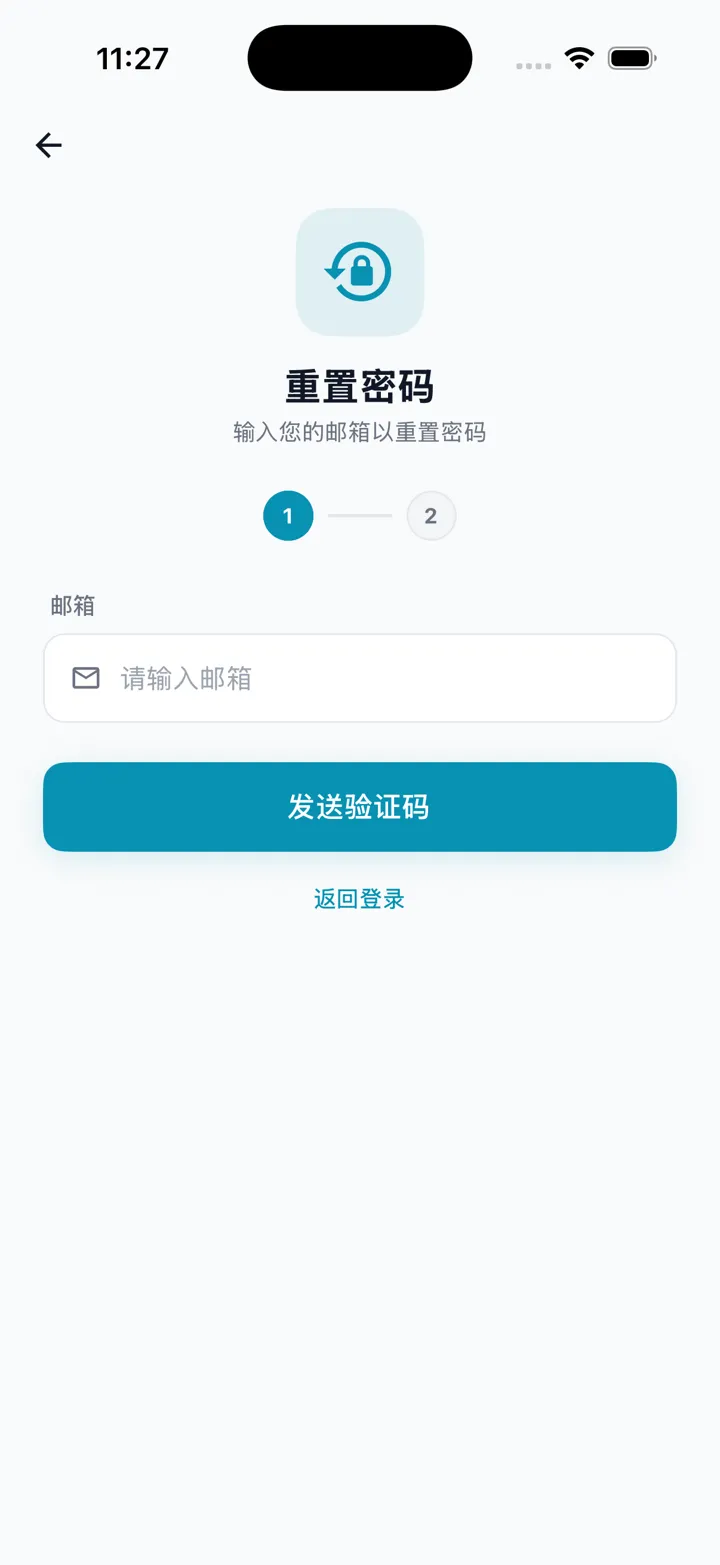
Step 1: verify email — enter the email you registered with and tap "Send code".
Step 2: code + new password — once the code is sent the page advances to step 2; the email field locks with a green check (wrong email? tap "Edit" to its right to go back). Enter the 6-digit code (resendable after the countdown), a new password (same rules), and confirm password, then tap "Reset password". On success it shows "Password reset successfully" and returns to login.
Signing out
Tap "Profile" at the bottom → scroll to the bottom and tap the red "Sign out". You're returned to the login page.
💡 Signing out does not delete any of your data. Sign in with the same account next time and your tanks, devices, and records are all still there.
Deleting (closing) your account
⚠️ This cannot be undone. Deleting your account permanently erases your account and all data, with no recovery. Use it only if you truly want to close the account for good.
Path: Profile → Settings → Account → Delete account. Flow: enter your current password → tap "Send code" and enter the code sent to your email (60-second countdown) → tap the red "Delete account" → a second confirmation appears; tap "Confirm delete" once more to actually execute.
Create your first tank
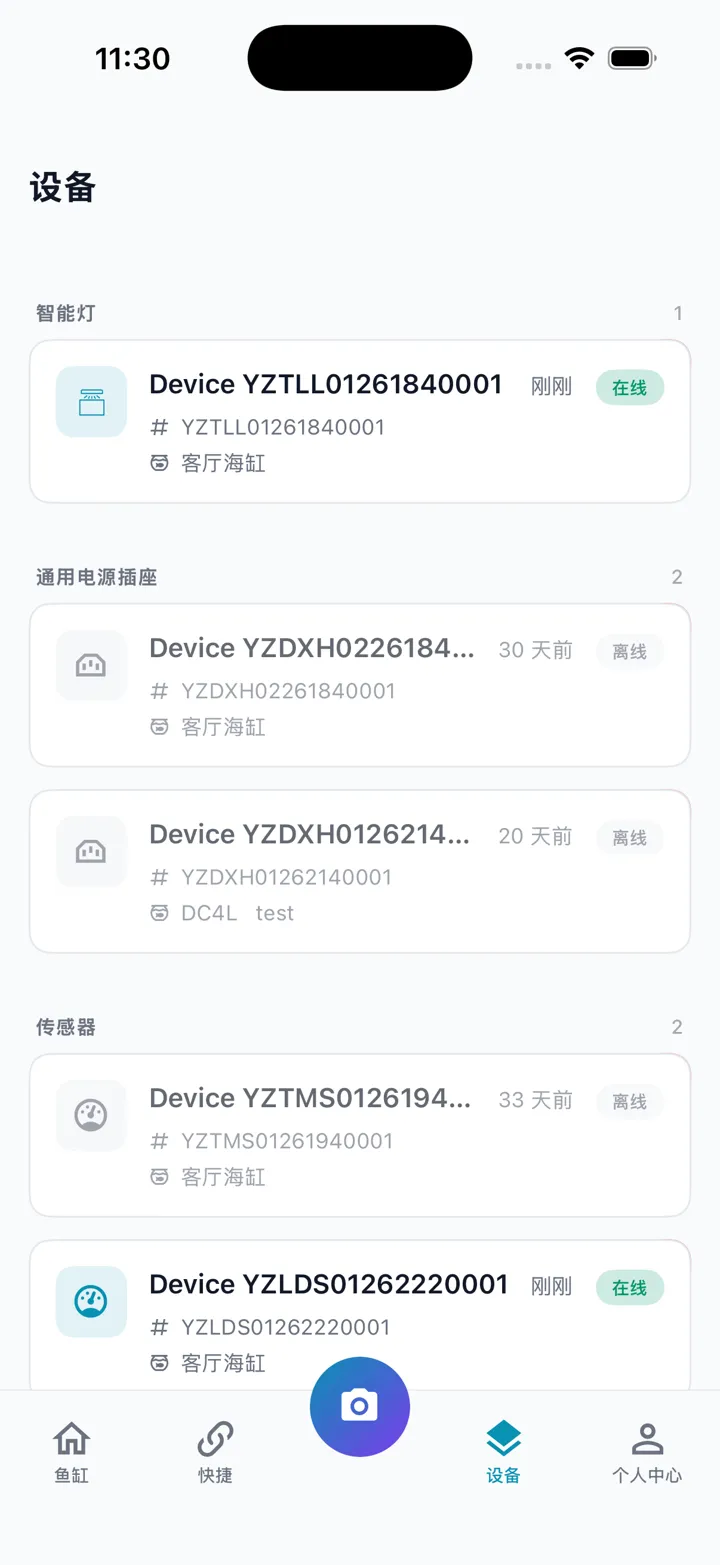
Home screen: five bottom entries
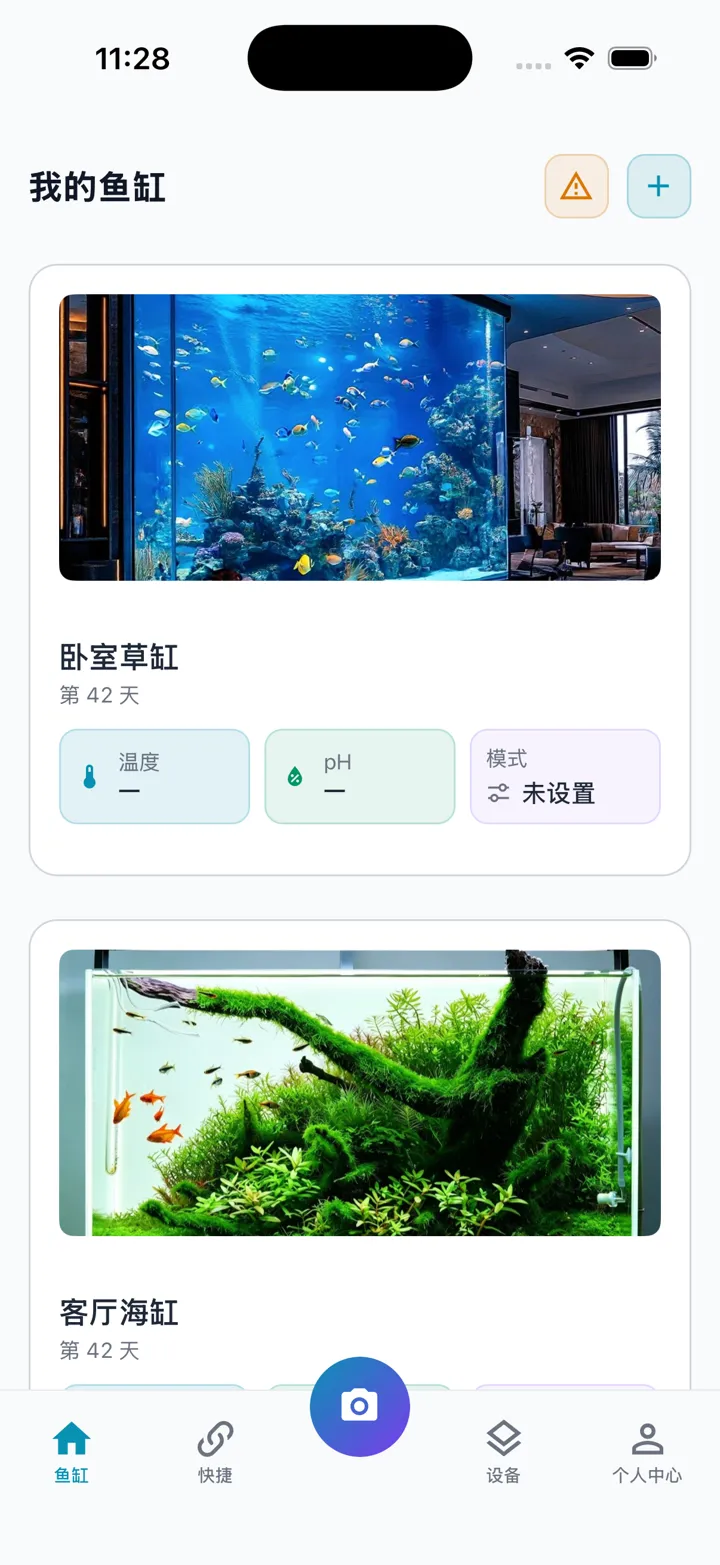
After signing in, the bottom row has five entries:
Entry | What it does |
|---|---|
Tanks (home) | A card list of all your tanks. Each card shows the photo, days since setup, temperature, pending alerts, etc. Pull to refresh. |
Discover | An embedded web content page (discover/news). Note: automation rules are not managed here — they live on each tank's detail page. |
Center camera button | Quickly log a maintenance note (photo + text, e.g. "Changed the water today"). |
Devices | A list of all devices on your account; tap any to open its detail. |
Profile | Account, settings, feedback, about, sign out. |
Creating a tank
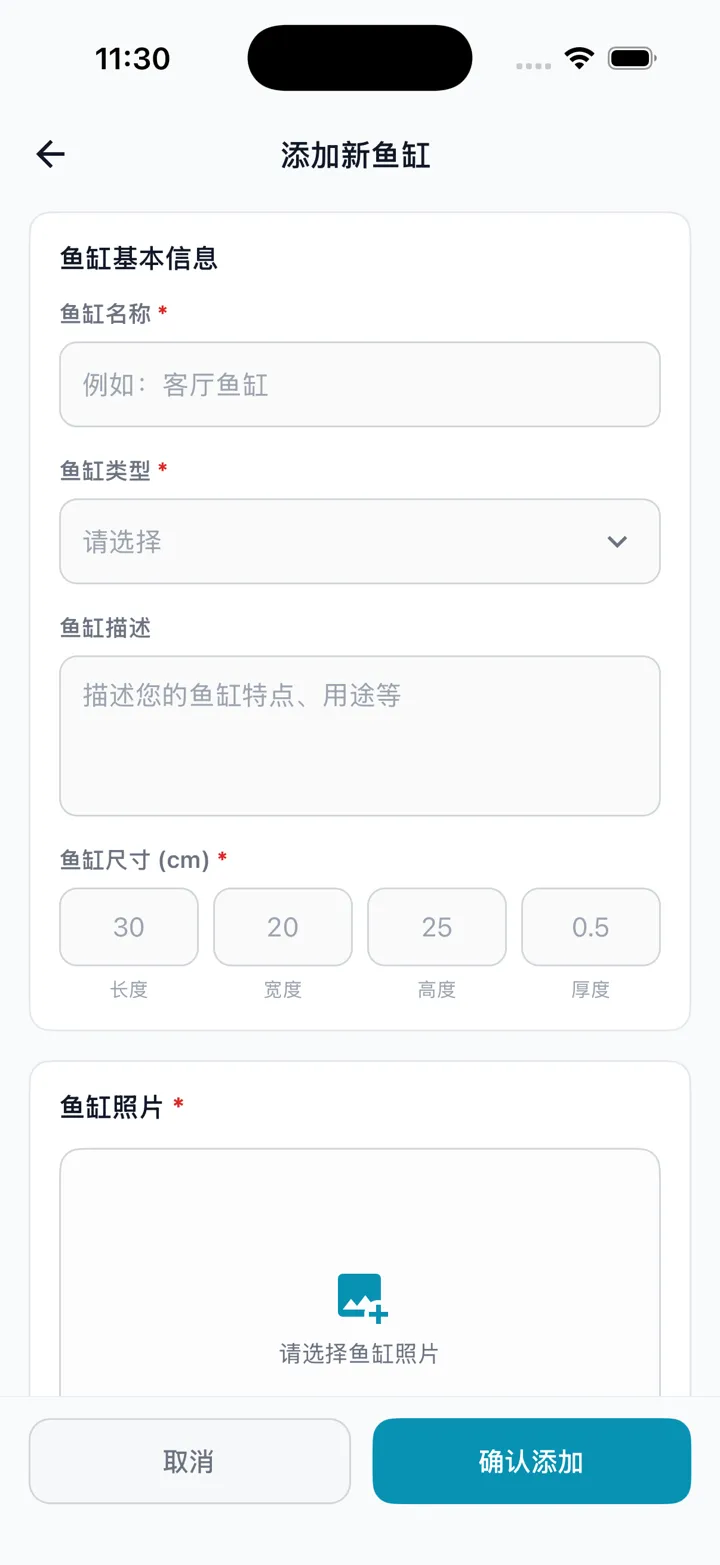
On Tanks (home) tap "Add tank" to open the form and fill in:
- Tank name (required) — e.g. "Living room tank".
- Tank type (required) — tap to choose from the built-in tank types (planted, marine, iwagumi, etc.).
- Description (optional) — jot down the tank's location, purpose, etc.
- Dimensions (cm) (required) — enter length / width / height / glass thickness in order. The top right auto-computes an ≈ volume in liters to help you sanity-check the numbers.
- Tank photo (required) — tap the photo box, choose Camera or Album, and crop to 16:9. This is the cover shown on the home card.
Tap "Confirm" at the bottom. On success you return to the home screen and see the new tank.
💡 For an existing tank, the detail page lets you edit info or change the cover anytime (long-press the cover photo to bring up "Camera / Album").
Next: head to Add a Device & Wi-Fi Setup to connect lights, pumps, and sensors and bring them into this tank.